
Live Stream Chat
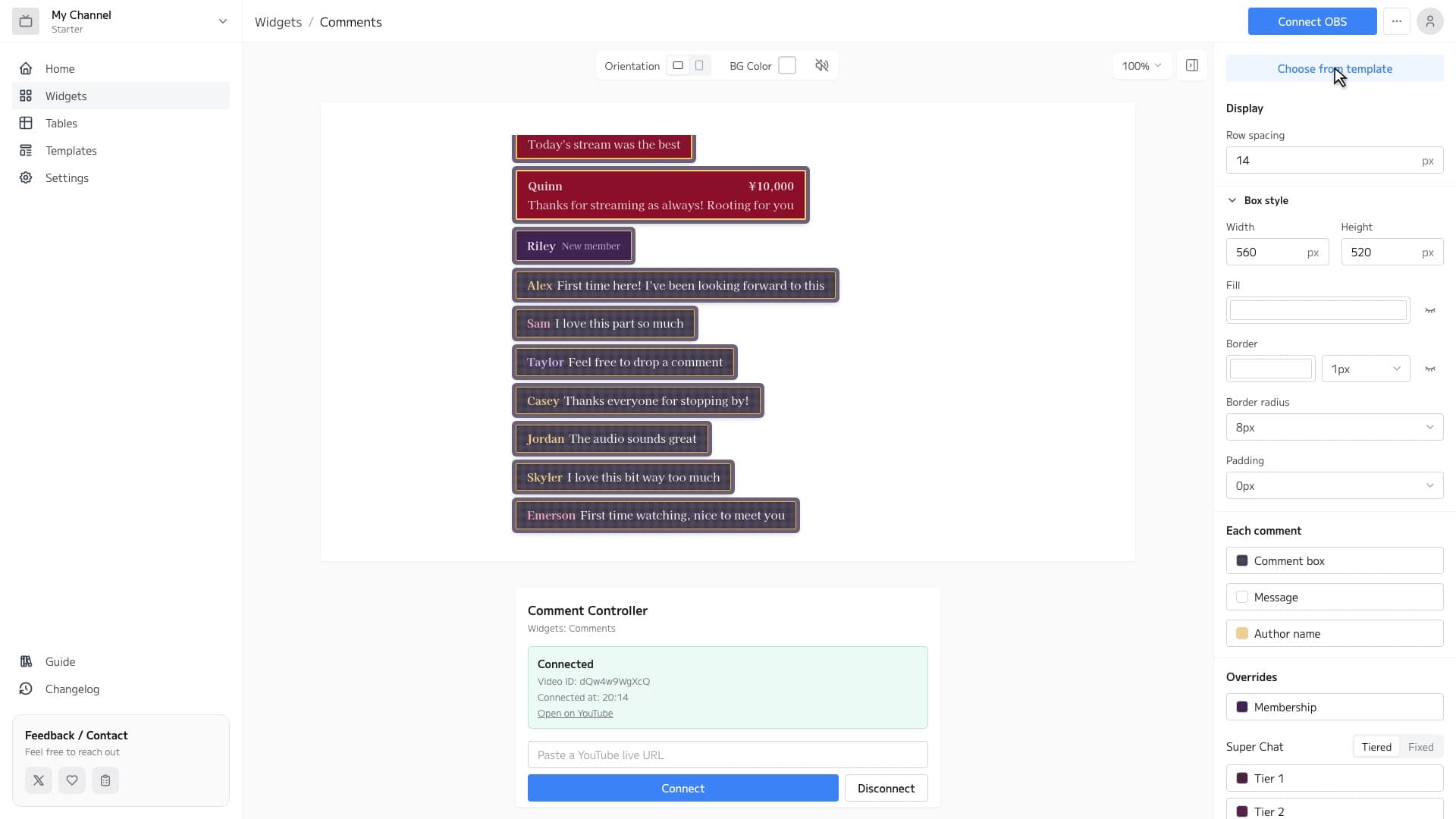
A widget that shows your YouTube Live chat in a design that fits your stream. Paste the stream URL to connect, then add it to a Browser source in OBS — that is the whole setup.
 OBS Studio Compatible
After signing in, you can request early access from the widget gallery on the widgets page.
Comment features
Connect by pasting a URL
Paste the stream URL into the controller and press Connect. No need to set up OBS again for every stream.
Design it your way
Adjust fonts, text color, background, borders, shadows, corner radius and line spacing by clicking. You can also layer icons, lines, and your own images (Pro plan and above) on top as decorations. Color Super Chats by amount tier, give memberships (joins, milestones and gifts) their own style, and go from speech bubbles to subtitles.
Follows deletions and bans
When a comment is deleted on YouTube or its author is banned, it is removed from your stream automatically.
Popular Comments templates
Once it opens up, you can add a designed comment widget to your stream with a single click.
How to Set Up
3 easy steps to use the Comments widget in OBS
Configure widget and get URL
Customize the appearance in the widget editor and copy the generated URL.
Add Browser Source to OBS
Click '+' → 'Browser' in OBS Sources panel and paste the copied URL.
Adjust Size & Position
Adjust the widget's size and position to fit your stream layout, and you're done!